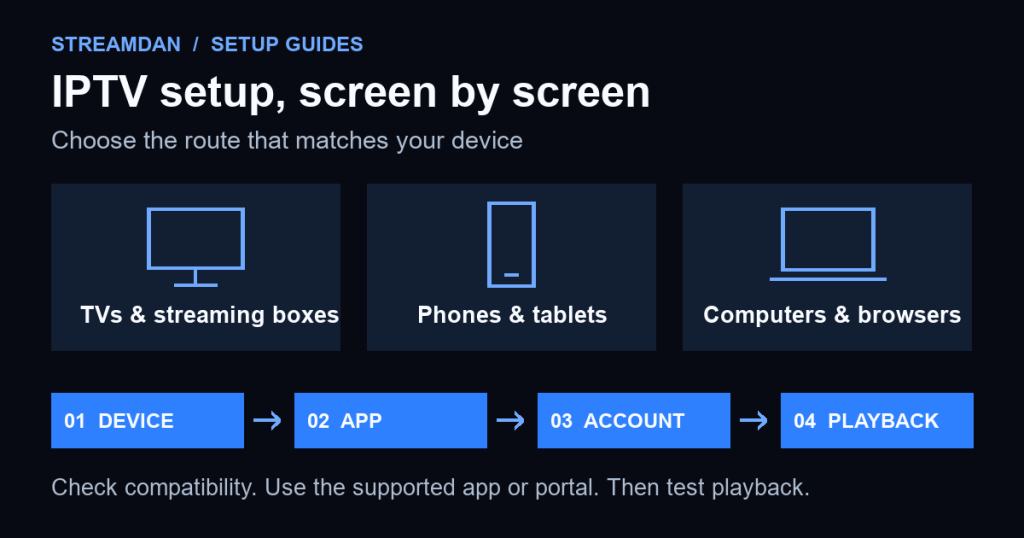
To set up IPTV, install an app that supports your device and service, enter the account or playlist details your provider supplies, then check live playback and the programme guide. A MAG box may use a provider portal instead of an app, while some services offer a browser player.
This guide covers the main TV, streaming-device, phone, tablet and computer platforms. “All devices” does not mean every model supports every service: the operating system, app availability, country and account format determine which route works. Use services authorized to distribute the content you intend to watch; an installed player alone does not establish those rights.
Prepared by StreamDan with AI assistance using the linked documentation on September 10, 2026. This is a documentation-based guide, not a hands-on test of each device. Follow your app publisher’s current instructions when menus differ.
Before you start: confirm the app and account format
Write down your device’s full model name and operating-system version. Ask your provider for the supported app’s exact name and publisher, the correct login method, and any limit on simultaneous viewing. Confirm these details before buying a player activation or subscription. Our device and player compatibility overview explains what to check.
You may encounter three separate accounts: the device-store account used to download apps, a player account used for optional player features, and the IPTV service account used to access your provider’s content. Their passwords and payments are not interchangeable.
| Provider supplies | Use this option | Check before entering it |
|---|---|---|
| Service username, password or activation code | The provider’s own app or web player | Use the provider’s verified app or sign-in address. |
| Server URL, username and password | Xtream Codes / Xtream API, where supported | Keep the supplied protocol, port and path. |
| M3U playlist URL or file | M3U / playlist import | Use the whole URL or the supplied file, not a portal address. |
| Portal URL and device-registration instructions | A compatible MAG or portal-capable device | Confirm model support and account registration first. |
| Separate EPG address | Programme-guide / EPG settings | This loads programme data; it is not a channel playlist. |
Support for these formats varies by player. For one concrete example, the developer’s IPTVX App Store listing describes M3U, Xtream API and EPG support. That is an example of capability information to check, not confirmation that the app works with your particular service.
Connect your device to the internet and keep its software current. Keep login messages private: playlist URLs may include credentials. Do not upload them to public playlist validators or post them in a support forum.
Set up IPTV on Samsung and LG smart TVs
Samsung smart TVs
- Sign in to the Samsung account required for the TV’s smart services, and connect the TV to the internet.
- From Home, open Apps and select the search icon.
- Search for the exact player or service app your provider supports. Check the publisher, then select Install.
- Open the installed app from Home or Apps. Sign in directly, or follow the account and playlist steps below.
Samsung’s app installation instructions describe this store-based route. If the app is absent, check the TV model and regional availability with its publisher. Android APK instructions are not the Samsung TV installation method.
LG smart TVs with webOS
- Connect to the internet and sign in to your LG account if prompted.
- Press Home, then open Apps or LG Apps. Older models may use the LG Content Store.
- Search for the supported app, open its details, and select Install.
- Select Launch or open the app from Home. Enter the service details using the method requested by the player.
LG documents the current app installation process and older webOS menu variations. If an app is missing, check the model and your actual services-country setting. Do not assume that an app offered on Android is also offered for webOS.
Some TV players display a pairing code, device ID or an upload website. Follow that process only when it is documented by the verified app publisher. A website found by searching the player’s name is not automatically its official activation site.
Set up IPTV on Android TV, Google TV and Android boxes
Use the TV-compatible version of the app. A phone app with the same name may not offer remote-friendly controls or support your television.
- On Google TV, search from Home or open the Apps tab. On Android TV, open Google Play Store from the Apps row.
- Find the service’s app or a player that explicitly supports the account format you have.
- Open its listing, check compatibility and any purchase terms, then install it.
- Launch the app and add the service account or playlist. Allow the initial import to finish before testing a channel.
The store navigation is documented in Google TV’s installation guide and Android TV’s app instructions. For a generic Android box, first confirm whether it actually includes Google Play and runs Android TV or a different Android interface. If it has a different store, follow its manufacturer’s supported installation route.
Set up IPTV on Firestick and Fire TV
- Check the exact model and software under the device’s About settings. Match it to Amazon’s device and operating-system table.
- Search the Amazon Appstore for the supported service or player app and verify its publisher.
- Install it, open it, then enter the provider’s login or playlist information.
Fire OS and Vega OS require different app builds. For example, Amazon lists the Fire TV Stick HD (2026) and Fire TV Stick 4K Select (2025) as Vega devices. Android APK steps do not apply to Vega. If there is no compatible app, ask the provider for another supported viewing option.
Use our step-by-step Firestick setup guide for store installation, the conditional Fire OS APK route, and Fire TV-specific troubleshooting.
Set up IPTV on Apple TV
- On an Apple TV HD or Apple TV 4K, open the App Store.
- Search for the provider’s supported app or a compatible player. Confirm that its listing includes Apple TV support.
- Select Get or the displayed price and complete the download after reviewing any charges.
- Open the app. Use its own sign-in, pairing flow or playlist setup, as directed by the publisher.
Apple’s download instructions also note that Apple TV (3rd generation) has no App Store for installing new apps. The Apple TV app on a smart TV is a different product from the Apple TV hardware and does not provide a general-purpose tvOS app store.
Set up IPTV on Android phones, iPhone and iPad
Android phones and tablets
- On a device that supports Google Play, open the Play Store and search for the verified app.
- Check the publisher and device requirements, then select Install or review the displayed purchase option.
- Open the app, add your service account or playlist, and test a channel over your normal connection.
See Google’s app download instructions. For a tablet without Google Play, use the device manufacturer’s supported store and verify that the required app is available there.
iPhone and iPad
- Open the App Store and search for the service app or player.
- Review the developer, compatibility and purchase information. Tap Get or the price and authenticate as prompted.
- Open the app and complete its account or playlist setup. Check picture, sound and channel navigation before adding more devices.
Apple’s iPhone and iPad download guide explains the download process. Prefer your own trusted Wi-Fi connection while configuring the account. If you later use mobile data, check your mobile plan’s allowance before a long viewing session.
Set up IPTV on Windows, Mac and Linux computers
Ask first whether your service provides a supported web player or desktop application. Use that route if the service requires its own authentication or protected playback.
For a provider-supplied network stream that supports VLC, the desktop player offers a straightforward playback check:
- Get VLC for your operating system from VideoLAN’s official website.
- Open the network-stream dialog. On the Windows-style interface, choose Media > Open Network Stream. On macOS, look for Open Network in the File menu.
- Enter the complete network-stream URL supplied by the provider, then choose Play or Open.
- If you were given a supported playlist file instead, open that file in the player and choose a channel from its playlist view.
VideoLAN documents opening files and network streams. A successful stream test does not establish that the player supports every service feature. For an integrated EPG, catch-up or account login, choose a player the provider explicitly supports. Do not paste a portal homepage into the network-stream box and expect it to become a playable channel.
Set up IPTV on MAG boxes that use a portal
These steps apply to compatible MAG Linux/WebKit boxes with an accessible embedded portal. Confirm the model and provider portal support first; an Android-based box may need the Android setup route instead.
- Get the portal URL and registration instructions from your provider. If registration requires your device identifier, send it privately to the provider.
- In the embedded portal, open System settings > Servers > Portals.
- Enter a recognizable name and the exact provider URL in the appropriate portal slot.
- Save the settings, leave that screen, and use System settings > Restart Portal to load the portal. If asked, sign in with the credentials supplied by the provider.
This follows Infomir’s external-portal instructions. Operator-managed firmware can restrict portal editing. Contact the operator if the menu is unavailable or access is denied; do not overwrite a managed setup or invent a portal address.
Use a browser, Roku or another device
Provider web player
- Obtain the official web-player address and supported-browser list directly from the provider.
- Open that address in a supported, updated browser and sign in.
- Select a channel and check playback. If there is a protected-content or unsupported-browser error, follow the service’s browser requirements.
A web player is not the same as an M3U link or a MAG portal. Do not enter your service password into an unrelated website offering to play any playlist. Browser access must be supported by your subscription.
Roku players and Roku TVs
- Press Home on the remote and open Store > Apps.
- Find the service’s supported Roku app and open its details.
- Select Add app, or review the subscription option shown. Launch it and complete the service’s sign-in instructions.
See Roku’s app installation guide. If your provider has no compatible Roku app, ask about a different supported device. Do not assume Android or Firestick installation steps will work on Roku.
Other TVs, consoles and older screens
For a TV with a different operating system, a game console or an older streaming box, check the provider’s current supported-device list and that device’s official app store. If no supported route exists, a compatible external streaming device connected to the TV’s HDMI input may be an option. Confirm both the streaming device and your TV’s connection requirements before buying hardware.
Enter your IPTV account or playlist
Once the app is installed, use the method that matches the information you received. The labels below describe common fields; your player may use different wording or support only one format.
Provider app sign-in or activation
Enter your service username and password inside the verified app. If the TV displays a code, visit the exact activation address shown by the app on your phone or computer and follow the pairing flow. Your device-store password is not normally the IPTV password.
Xtream Codes or Xtream API
- Choose the supported Xtream account option.
- Put the server address, username and password in their separate fields. Preserve punctuation, capitalization and the supplied port or path.
- Add a descriptive account name if requested, then save and let the channel list load.
A useful final check is to compare each field with the provider’s original message. If you only received a playlist link, request the appropriate login details rather than guessing how to split the URL.
M3U playlist
- Choose the option to add a playlist by URL or import a file.
- Enter the complete M3U URL, or select the supplied file. Check for leading spaces or a missing ending.
- Save the playlist under a name you recognize and wait for the import.
- If the provider supplied a separate guide address, add it in the EPG settings.
A downloaded playlist file is a saved copy; if your provider changes its channel list, ask how to refresh that copy. If importing fails, confirm the file or URL with the provider before repeatedly reinstalling the player.
Check the EPG and confirm setup is complete
The electronic programme guide (EPG) supplies programme names and schedules. Refresh it in the player, and check the device time zone if programme times look wrong. If your account includes no guide data for a channel, refreshing cannot create that information.
Before setting up the next screen, check these four things:
- Account: the expected channel list loads without a login error.
- Playback: two different included channels show picture and sound.
- Navigation: the remote, mouse or touch controls let you change channels and return to the guide.
- Persistence: closing and reopening the app retains the account, where the app supports saving it.
Ask about simultaneous-stream limits before testing multiple screens together. Having the app installed on several devices does not automatically mean your account permits them all to play at once.
Fix problems without restarting the entire setup
- App not found: check the operating system, exact model and country with the publisher. Choose a supported route rather than downloading a similarly named app.
- Login rejected: confirm the account type, server address and subscription status. Remove accidental spaces and use the service password.
- Playlist loads but one channel fails: try another included channel and report the failing channel and time to the provider.
- Many apps buffer: investigate the device’s internet connection. Try a supported wired connection or improve Wi-Fi placement before changing player settings.
- Only the IPTV player buffers: compare channels, close other account sessions, and ask the provider to check its streams. A lower-quality option may help if one is available.
- Guide is empty: confirm the EPG source, refresh it, and ask whether that channel has guide coverage.
- Picture without sound or a decoder error: return to the player’s default settings and consult its codec or audio guidance. Do not change several advanced settings at once.
If you still need help, prepare the device model, software version, app name and version, the exact error, and whether other channels or apps work. Remove credentials from screenshots. Our IPTV setup and troubleshooting FAQ provides further context, and you can contact StreamDan to confirm your account’s setup requirements.