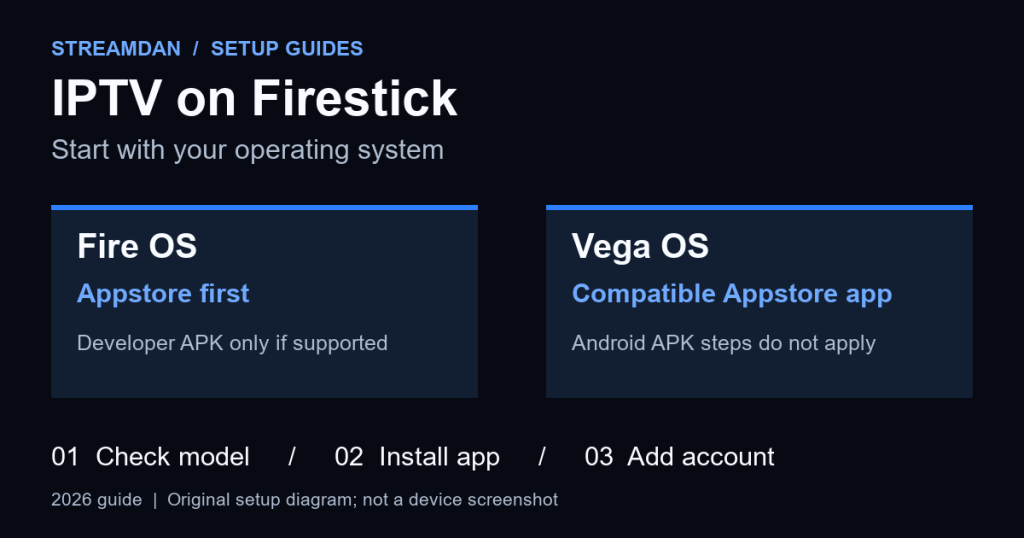
To set up IPTV on a Firestick, identify your model, install a compatible player or your service’s official app, sign in with the account details your provider supplies, and test playback. Start with the Amazon Appstore. If your device uses Vega OS, Android APK instructions do not apply.
This guide covers the Fire OS and Vega OS routes, playlist login, programme guides, and practical checks when something fails. Use a service authorized to distribute the content you intend to watch; installing a player does not establish a provider’s distribution rights.
Prepared by StreamDan with AI assistance using the linked documentation on September 10, 2026. This is a documentation-based guide, not a hands-on device test. Menu labels and app availability can vary by model, software version, and country.
1. Check your Firestick model before choosing an app
Open your device’s Settings and look under My Fire TV > About for its model and software information. Match the exact model and generation to Amazon’s Fire TV device table. The purchase year alone is not enough to identify the operating system.
| Device | Operating system | Setup route |
|---|---|---|
| Fire TV Stick 4K Select (2025) | Vega OS | Find an app built for this device in the Appstore. |
| Fire TV Stick HD (2026) | Vega OS | Use a compatible store app; skip Android APK steps. |
| Fire TV Stick 4K Plus (2025) | Fire OS 8 | Start with the Appstore; consider a developer-supplied APK only if supported. |
Fire OS uses Android-based apps. Vega requires a separate compatible app build: Amazon’s app update documentation specifies a Vega package when adding Vega support to an Android app. Downloading a different Android APK does not solve that mismatch.
If you have Vega OS and your provider has no compatible app, stop here and ask for a supported viewing option. Confirm compatibility before paying for a player or service. The StreamDan device and player guide lists the details to check.
2. Gather your connection and account details
- A configured Firestick, paired remote, Amazon account, and working internet connection. For a new device, follow Amazon’s initial Fire TV Stick setup instructions.
- The exact app name and publisher recommended by your service, plus confirmation that it supports your device and country.
- Your service login, an M3U playlist URL, or a server URL with username and password for a compatible Xtream Codes login. Ask which format your account uses.
- An electronic programme guide (EPG) address if your service supplies it separately.
A player account and an IPTV service account can be separate. Activating a paid player does not necessarily include channels. Keep passwords and playlist URLs private: a playlist address may contain account credentials.
3. Install a compatible app from the Amazon Appstore
- From the Fire TV home screen, open Find and search for the app’s exact name. You can also use the remote’s voice search.
- Open the result and compare the publisher with the service’s or developer’s official information.
- Select Get or the purchase option displayed. Review any charge before continuing.
- After installation, open the app and follow its sign-in or activation instructions. For an on-screen activation address, use only the address shown by the verified app.
These download steps follow Amazon’s app installation help. If the app does not appear, ask its publisher about your exact model and region. A similarly named result may be a different product.
If your service has its own app, its normal sign-in may complete setup without an M3U URL. If the app asks you to add a playlist, continue to step 5.
4. Optional: install a developer-supplied APK on Fire OS
This route is for compatible Fire OS devices only. Use it when the app developer supports Fire OS installation outside the store and supplies the download. If your device or current software does not permit it, use a supported store app instead.
- Install Downloader by AFTVnews from the Appstore, if available for your device. Check the publisher against the developer’s Downloader page.
- Open Settings > My Fire TV > Developer Options. On Fire OS versions where this menu is hidden, open About, select the device name seven times, then return to My Fire TV. Amazon describes revealing this menu in its Fire TV developer instructions.
- Under Install Unknown Apps, allow Downloader if that option is available. Older versions may label the permission Apps from Unknown Sources. You do not need ADB debugging for the Downloader method.
- In Downloader, enter the app developer’s official download-page address. Select the Fire OS-compatible APK specified by that developer, then follow the installation prompt.
- Open the installed app. Once installation is complete, remove the downloaded installer if no longer needed and turn off the installation permission you enabled. Use the developer’s documented update method for future versions.
The Downloader manual explains URL downloads and APK installation. Avoid anonymous APK mirrors, modified players, and unexplained numeric download codes. If a warning identifies an app as unsafe or blocked, do not try to bypass it; contact the publisher or choose a supported app.
5. Add the account format your provider supplied
The following is a field-matching guide for compatible players. Screen names differ, and some apps support only one method. Use your player’s own instructions where they differ.
Server URL, username, and password
- Choose the app’s option for a provider account or Xtream Codes, if it supports that format.
- Enter the server address, username, and password in their separate fields. Preserve the address’s protocol, port, and any supplied path.
- If a playlist name is requested, choose a label you will recognize.
- Save the account and let the initial channel and guide import finish.
Do not substitute your Amazon password or player-premium password for your service password. If your welcome message does not contain the required fields, ask the provider for the correct login method.
M3U playlist URL
- Choose the player’s option to add an M3U playlist by URL.
- Paste or type the complete address from your provider. Check for missing punctuation, spaces, or a truncated ending.
- Give the playlist a recognizable name and save it.
- If the guide is separate, enter the supplied EPG URL in the player’s programme-guide settings.
Enter playlist credentials inside the verified player. Do not paste them into public URL checkers or include them in screenshots sent for help. StreamDan must confirm which account format, if any, is available for your plan.
6. Check playback and the programme guide
Before adjusting advanced settings, try a channel your account is supposed to include. Check that the picture and sound work, then try another channel and return to the guide. This separates a single-stream issue from a wider setup problem.
- Guide missing: refresh the EPG in the player and confirm whether the provider supplies guide data for those channels.
- Programme times wrong: check the device’s time zone, then any guide time-offset setting in the player.
- Playback stops when another device starts: ask about simultaneous connection limits and close other sessions before retrying.
- Only one channel fails: report its name and the time of the failure to the service.
Keep default decoder and buffer settings for the first test. Change one setting at a time only when the player’s support guidance recommends it, so you can tell what helped.
If IPTV setup still does not work
The app will not install
Recheck the model and operating system first. On Fire OS, also check available storage and the developer’s minimum software requirements. On Vega, an Android APK is the wrong package type. An absent permission menu is not a reason to factory-reset the device.
The login is rejected
Compare each field with the provider’s message, including capitalization and extra spaces. Confirm that the subscription is active and the selected login type matches the supplied details. Reinstalling the app will not correct invalid credentials.
The app crashes or will not load
Restart the app and device, then check for an app update. On devices with the relevant menu, open Settings > Applications > Manage Installed Applications, select the player, and try Clear Cache. See Amazon’s cache and data instructions. Keep your login details before using Clear Data or reinstalling, as you may need to configure the app again.
Channels load but keep buffering
Try another streaming app on the same Firestick, then another IPTV channel. If several apps struggle, investigate the network connection; if only the IPTV service struggles, ask the provider to check the affected streams. Pause large downloads and try a lower-quality stream if the player offers one. These are diagnostic checks, not a guarantee of smooth playback.
For help, send the exact Firestick model, operating system, player version, error text, and whether one or all channels are affected. Remove passwords and playlist URLs. Review the StreamDan setup and troubleshooting FAQ or contact StreamDan about your device with those details.