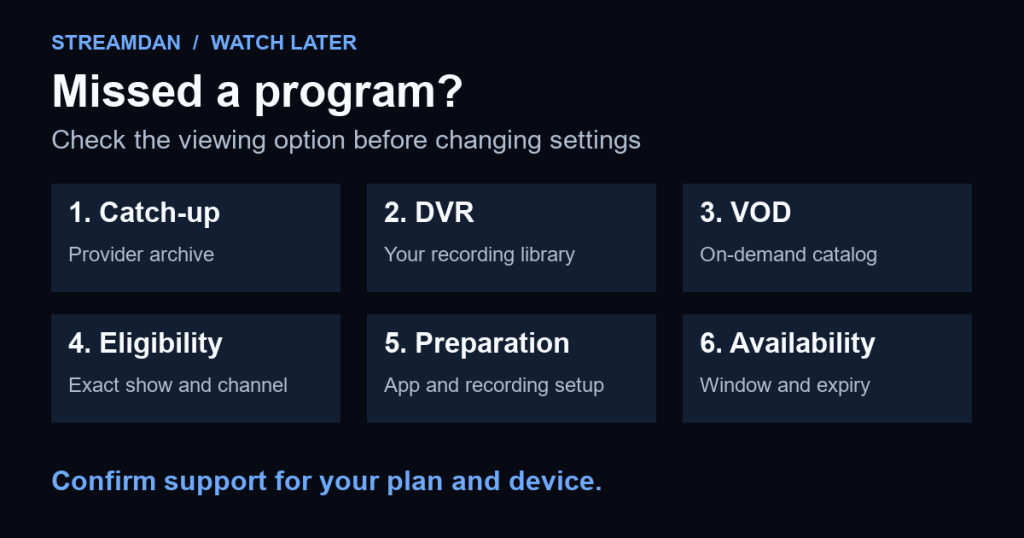
To watch a show you missed on IPTV, check three places: the provider’s catch-up archive, your DVR recordings, and its video-on-demand catalog. Catch-up lets you replay supported past broadcasts; DVR stores programs you arrange to record; video on demand, or VOD, offers titles from a catalog. Having one feature does not establish that your service includes the other two.
Start with the exact program, episode or event, its original channel, and the date it aired. That gives you a clear target instead of searching every playback menu. Use the options your authorized service actually provides.
Prepared by StreamDan with AI assistance from official documentation checked September 22, 2026. This is a documentation-based guide, not a hands-on comparison. Product examples explain different workflows; they do not establish which features a StreamDan plan includes.
Which option fits the program you missed?
| Option | What to look for | What to verify |
|---|---|---|
| Catch-up / TV archive | A past airing on a supported channel | Channel coverage, archive window, and compatible player |
| DVR / recording | A recording in your library | Recording was scheduled or started, completed, and remains available |
| VOD / on demand | The specific title or episode in the catalog | Your plan includes that version and it is currently available |
For a concrete service example, YouTube TV’s viewing guide distinguishes on-demand programs in Home from recordings in Library. Other apps organize these choices differently. A program name in a TV schedule is not itself a playable recording.
Check catch-up availability before changing the player
A player needs a compatible archive source. The IPTVX developer FAQ says catch-up depends on provider support and compatible playlist archive data, including supported Xtream-style and M3U formats. Buying a player upgrade alone does not supply the missing broadcast.
- Ask whether your account includes catch-up for the exact channel and airing. For a US local station, include the station or feed name rather than only the network.
- Confirm how far back that archive goes. Do not assume every channel has the same window.
- Check that your app and account format support the provider’s archive method. Use the device and account setup guide if you are unsure which login method you have.
- Open a recent eligible program first. If it works, compare the failed program’s date and channel with the confirmed coverage.
Kodi’s IPTV Simple documentation describes catch-up windows and per-channel catchup-days metadata. Those controls describe the archive the player should request; increasing a setting is not evidence that the provider stores more days. Use the provider’s supported configuration instead of guessing archive URLs.
Example: opening a supported archive in IPTVX
In IPTVX, look for a catch-up or clock indicator on a channel, open its actions, and select the program archive when available. The developer also documents past programs in TV Guide or archive views for compatible M3U archive playlists. If the indicator is missing, confirm provider data and app support before reinstalling. These steps are specific to supported IPTVX configurations, not universal remote-control instructions.
DVR needs its own recording plan
Do not wait until a show ends to find out whether it was recorded. With YouTube TV’s documented DVR workflow, adding a program to Library records current and upcoming airings. Adding an episode while it is already in progress starts that recording at the point you added it; a later rerun can replace the partial copy. This is one service’s behavior, not a rule for every IPTV plan.
Recording architecture also differs. The IPTVX feature guide describes recording through IPTVX Media Server. If your chosen app requires a server or local storage, verify that setup before relying on a recording button. A provider archive and your own recording setup can fail for different reasons.
Ask where recordings are stored, whether equipment must remain running, how storage or expiry works, and whether recording consumes a permitted connection. Test a short, nonessential program using the documented method before depending on it for an event you cannot watch live.
If the missed program still will not play
Use this fictional example: you want Monday’s 8 p.m. episode on Wednesday. First check the exact episode in VOD. Then check whether you have a completed recording. Finally, check whether Monday’s airing falls inside the archive window for that channel. Each route has a separate eligibility check; none guarantees that the episode is available.
- The archive entry is absent: ask whether the channel and date are covered. An expired or unsupported airing needs a different available viewing option.
- The wrong show opens: record the channel, requested start time, time zone, and actual program. Ask support to check schedule-to-archive alignment before shifting unrelated settings.
- A DVR entry is missing or incomplete: check the scheduled time and recording result using your app’s instructions. Ask about source interruptions or recording requirements.
- The replay starts but stalls: compare another eligible replay and live playback, then follow the buffering checks. Report which type of playback fails.
For help, send the program, channel/feed, original airing date and time zone, player version, device, and exact error. Redact passwords and full account URLs from screenshots. For StreamDan, ask support to confirm replay or recording support for your plan.
Before relying on any feature, get four clear answers: which programs are eligible, which app works, what you must do in advance, and when access expires. Keep those answers with your setup notes so the next missed show does not require starting over.