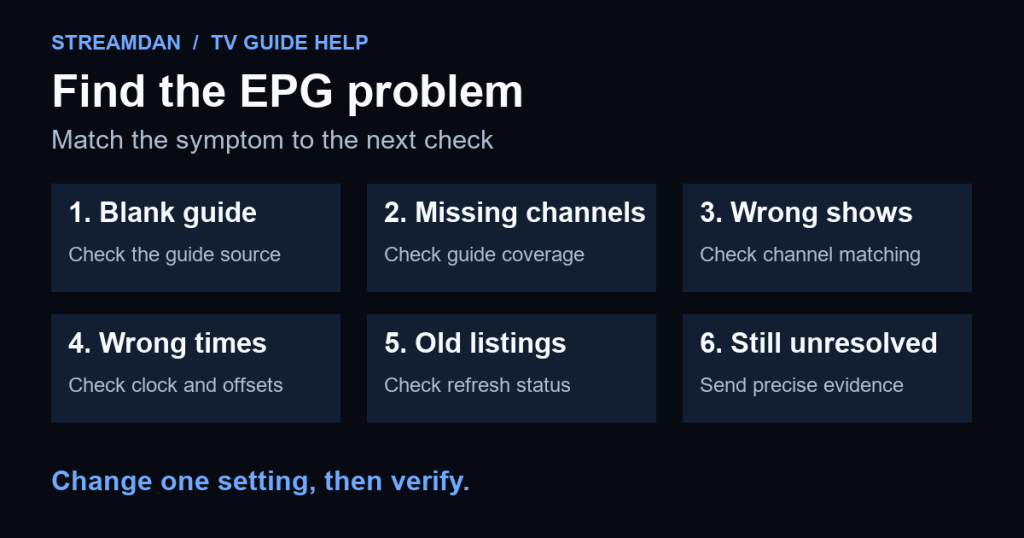
If your IPTV EPG is not working, first check whether the guide is blank, missing only some channels, showing the wrong programs, or displaying the right programs at the wrong times. Each symptom calls for a different check. Confirm the guide source before resetting the app, and change only one setting at a time.
This guide is for viewers who already have a working account with an authorized TV service. If no channel list loads, start with the IPTV account and device setup guide. If video plays but repeatedly pauses, use the buffering troubleshooting guide.
Prepared by StreamDan with AI assistance from official documentation checked September 20, 2026. This is a documentation-based diagnostic guide, not a hands-on player test. Menus and available controls vary by app, version, and device.
Identify the guide problem before changing settings
The electronic program guide, or EPG, provides program names and schedules. It is distinct from the channel playlist. For example, Kodi’s IPTV Simple documentation describes M3U as its stream-list format and XMLTV as its guide-data format. A working channel does not, by itself, confirm that its schedule has loaded.
| Symptom | Check first | Useful evidence |
|---|---|---|
| Entire guide is blank | Configured source and import result | Last update time or error message |
| Only some channels are blank | Coverage and channel matching | One affected and one working channel |
| Wrong program names | Selected station or feed | Exact channel name and expected listing |
| Correct shows, wrong times | Device clock and guide offsets | Displayed versus expected start time |
| Yesterday’s listings remain | Refresh status and source dates | Latest date with usable guide entries |
When the whole EPG is blank
- Open the affected playlist’s guide settings and confirm which source it uses. If your provider supplies the guide automatically, ask whether manual configuration is needed before adding a second source.
- If a separate EPG URL is required, compare it privately with the provider’s instructions. Do not substitute the channel playlist URL or guess an address.
- Use the player’s guide-refresh control and let the import finish. Note any error and whether the last-update indicator changes.
- If importing fails again, ask the provider to confirm that the guide source is available for your account and reachable from your device and network.
The IPTVX developer FAQ identifies invalid, missing, expired, blocked, or mismatched guide sources as checks for an absent EPG. Its advice applies to IPTVX; other players may expose different controls. Keep full guide URLs private because they can contain account details.
Avoid deleting a working playlist as your first experiment. Record its settings and confirm that you can restore the account before following any developer instruction to remove and re-add it.
When only some channels are missing or show the wrong programs
Choose one affected channel and one that works as a comparison. Ask the provider whether the affected channel has guide coverage and which guide entry should match it. In the US, give the exact local station or feed name shown in your app, not just the network name.
Kodi’s current IPTV Simple documentation explains that its tvg-id identifies the channel for matching with XMLTV data. Its matching behavior also considers names. This is a concrete example of why a channel can play while its guide match is missing; it is not a universal specification for every player.
For a supported IPTVX channel, the developer documents a Custom EPG picker accessible through channel, Search, or TV Guide actions. Search for the correct guide entry and save the match. A valid imported guide is required, and feature access can depend on the current plan. Reset a manual match if it becomes incorrect.
After any assignment, compare the current and next program with the expected schedule. Matching one familiar title is not enough to verify a whole feed. If the correct entry is absent, report that gap instead of choosing a similarly named channel merely to fill the grid.
When program times are wrong
Check the device’s date, clock, and local time zone before applying an EPG offset. On a supported Apple TV, Apple’s time-setting instructions place automatic time controls under Settings > General > Date & Time. For another device, use its manufacturer’s corresponding instructions. Do not choose a different city solely to make one channel’s guide line up.
Next, record any existing guide-wide or channel-specific offsets. Kodi’s IPTV Simple client, for example, has both a general EPG shift and rules for individual channel shifts. Other apps differ, so follow your player’s documentation before combining adjustments.
Use a small comparison log: channel, program, displayed start time, expected start time, and time zone. If one channel is wrong while others are correct, avoid shifting the whole guide. If all checked channels differ by the same interval, ask support whether a guide adjustment is appropriate. A one-hour difference is a clue, not proof of a daylight-saving problem.
When the guide is stale or still unresolved
Record the last successful refresh and the last date containing listings. Retry the supported guide update once and compare the result. Ask how far ahead the provider actually supplies schedules; increasing a player’s display window cannot establish that future listings exist.
Send support a compact report with the device model, OS, player version, affected playlist label, exact channels, symptom, local time zone, and refresh result. Include a redacted screenshot and the changes already tried. Leave out passwords and full playlist or guide URLs.
For StreamDan account questions, contact StreamDan support with those observations. Confirm the missing listings or time mismatch is resolved before making further changes. A populated guide verifies schedule display; it does not establish recording or catch-up availability.