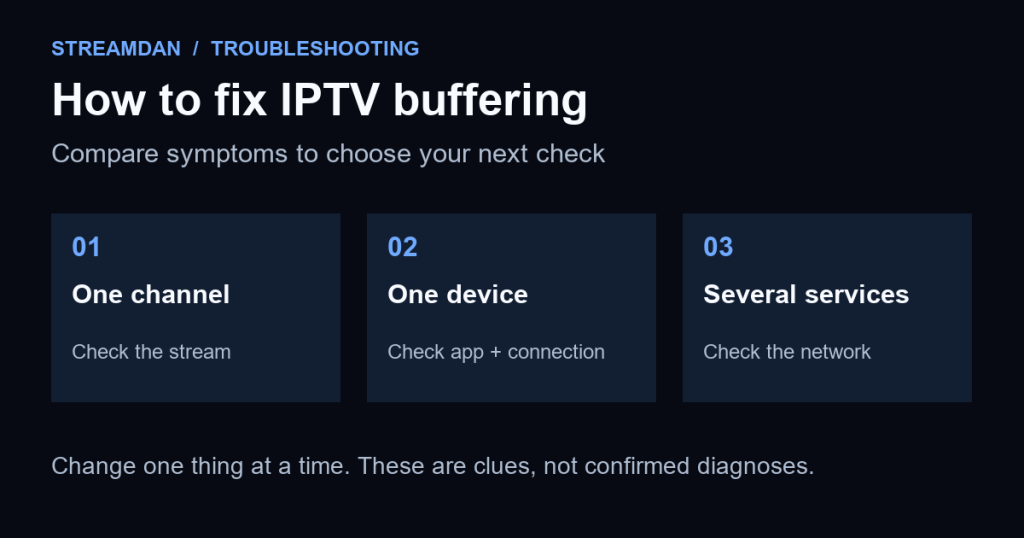
To fix IPTV buffering, first compare another channel and another streaming app on the same device. Then restart the player, check the connection, and try a lower-quality stream if one is available. If only one channel stalls, report that stream to your provider before changing your whole setup.
Work through the checks that match your symptoms, changing one thing at a time. Keep the device, channel and approximate test duration consistent so you can tell whether a change helped. These steps apply to a service you already have access to; they do not require a new subscription or replacement device.
Prepared by StreamDan with AI assistance using the linked documentation on September 10, 2026. This is a documentation-based troubleshooting guide, not a hands-on test of your player, network or service. Outcomes and menu labels vary by device and app.
1. Find out what is actually buffering
A playback buffer holds video data ahead of what you are watching. If incoming data cannot keep up, playback may pause while the buffer refills. Cloudflare’s buffering explanation describes how connection problems and streaming delivery can cause these interruptions.
A spinning indicator or repeated pause is different from a rejected login, an empty playlist or an app whose menus have frozen. If the account never loads, start with the IPTV account and device setup guide instead.
- Try another included channel. Note whether the problem affects one channel, several channels or everything.
- Try another streaming app on the same device. Use a similar video quality where possible. A working app is a useful comparison, not proof that every network route is healthy.
- If available, test a second supported device. Stop playback on the first device before starting the second so account connection limits do not confuse the result.
| What you observe | What it suggests | Next check |
|---|---|---|
| One channel buffers; others work | A stream-specific issue is possible. | Report the channel and failure time to the provider. |
| Several apps struggle on one device | The device or its connection needs attention. | Restart it and compare Wi-Fi with a supported wired connection. |
| Several devices and services struggle | The shared network or internet service may be involved. | Pause heavy network use, check for an outage and contact the ISP if needed. |
| Only IPTV struggles on multiple devices | The service, account or route to its servers may be involved. | Ask the provider to investigate with your comparison results. |
These are diagnostic clues, not confirmed diagnoses. The purpose is to narrow the next check rather than repeatedly reinstall every app.
2. Check the connection where you actually watch
If several apps struggle, restart the viewing device using its restart option. If other devices also have connection trouble, restart the modem and router following their manufacturer’s instructions. Wait for the network to reconnect before testing again. This interrupts internet access for other people using the network; use a restart, not the factory-reset button.
For Wi-Fi, move the router and viewing device closer if practical, keep the router in an open position and avoid placing it behind obstructions. These basic checks are consistent with Netflix’s network and buffering troubleshooting; they are general streaming checks rather than a guarantee for an IPTV service.
- Pause competing transfers: temporarily stop large downloads, cloud backups or other high-bandwidth activity you control, then retry playback.
- Try wired playback: if your device supports Ethernet, test with a compatible connection. Improvement makes the Wi-Fi link worth investigating, but does not identify the exact fault.
- Retest the same stream: avoid comparing a low-quality stream on one connection with a much higher-quality stream on another.
If you compare with another network you are authorized to use, keep any mobile data charges and service restrictions in mind. A different result helps isolate the issue; it does not by itself prove that your internet provider is throttling IPTV.
3. Understand why fast internet can still buffer
A speed test measures a connection to the test service, not every stream you might watch. FAST.com’s test explanation says it uses transfers to and from Netflix servers. A good result there does not verify the path to your IPTV provider.
- Use a supported network test on the viewing device where possible. A phone beside the router may not represent the TV’s connection.
- Pause playback for the test so the test and stream are not competing for capacity.
- Record the result and time, then resume the affected stream.
- Compare a result from a problem period with one from a period when playback works.
There is no single speed requirement that guarantees every IPTV stream will work. Ask the provider for the requirements of the specific stream quality. Other household traffic, variations in delivery and the route to the service can matter as well as the headline download speed.
For example, if a lower-quality version works but a higher-quality version stalls, that is a useful observation to report. It is not enough on its own to distinguish limited bandwidth from a problem with that particular high-quality stream.
4. Restart the player, update it and clear cache only when relevant
If the problem follows one app or device, fully close and reopen the player, then check for an update through its supported store or publisher. Restart the device if the app remains unstable. If menus are also slow or the app crashes, investigate the app itself alongside the connection.
Firestick and Fire TV
Where the menu is available, open Settings > Applications > Manage Installed Applications, select the IPTV player and choose Clear Cache. Reopen the player and retry the same channel. Amazon documents these cache controls for app issues and low-storage messages.
For operating-system and installation questions, use the Firestick setup guide. Reinstalling an incompatible app is unlikely to resolve a compatibility problem.
Android TV and Google TV
Open Settings > Apps, select the player, and look for Clear Cache. Depending on the model, you may first need See all apps or a storage submenu. Sony’s Android/Google TV instructions show the model-dependent menu paths.
Clear Cache and Clear Data are different actions. Clearing app data or reinstalling can remove saved accounts and preferences, so keep the correct login information before doing either. On platforms without an exposed cache control, use the app’s or device manufacturer’s troubleshooting instructions.
Cache clearing is an app troubleshooting step. It cannot repair a failing channel source or a congested connection, and it should not become a ritual after every interruption.
5. Try lower quality before changing advanced settings
If your service offers different qualities or an automatic quality option, try a lower setting and compare the result. YouTube’s streaming troubleshooting includes reducing quality; the equivalent control depends on your IPTV app and service.
If the player exposes a buffer-size setting, follow its developer’s guidance and make a small change rather than selecting the maximum automatically. A larger buffer may help absorb brief delivery gaps, but it cannot compensate indefinitely when data arrives too slowly. It may also add startup time or delay behind live action.
YouTube’s guidance illustrates the live-viewing tradeoff: reducing broadcast delay leaves less buffered video and increases the risk of interruption. There is no universal buffer duration to recommend for every IPTV player.
Leave decoder, stream-format and audio settings at their defaults unless the app’s support guidance identifies a reason to change them. If you try a supported change, note the original value so you can undo it when it does not help.
6. Recognize when more local changes will not help
If the same channel repeatedly fails across supported devices while other channels work, send those results to your provider. If all IPTV channels struggle but unrelated apps work, the provider should check your account, streams and delivery path. Ask whether there is a known incident and confirm the number of simultaneous streams your account permits.
Buffering during a busy live event or every evening is useful timing evidence, but timing alone does not establish server overload. Record when it starts, what is affected and when it recovers so the provider or ISP can compare it with their own information.
Do not treat a new VPN subscription, a DNS change or a factory reset as a guaranteed buffering fix. Without a diagnosed cause, these changes can add complexity while leaving the original problem unresolved. Follow your provider’s supported access requirements rather than trying to bypass restrictions.
Send support a short, useful problem report
For issues affecting several services or the whole household, contact your ISP with the network comparisons. For issues confined to the IPTV service, contact its provider with:
- The exact device model, operating system, player name and app version.
- The channel or programme, selected quality, date, time and time zone.
- Whether the problem affects one channel or all channels, and what happened in another app.
- Whether a second device or wired connection changed the result.
- The speed-test result and time, plus the steps you have already tried.
- The exact error text, if any. Remove passwords, activation codes and full playlist URLs from screenshots.
After a change, replay an affected channel long enough to cover the interruption pattern you observed. If it improves, keep that configuration and stop changing unrelated settings. For additional help, review the IPTV troubleshooting FAQ or contact StreamDan support with your findings.